
POS
Sell and redeem gift cards in-store with point of sale.
The POS screen is for staff use at the register: issuing a new gift card to a customer paying in store, or redeeming an existing card against a bill. All activity here is logged against the selected location and appears in your transaction reports.
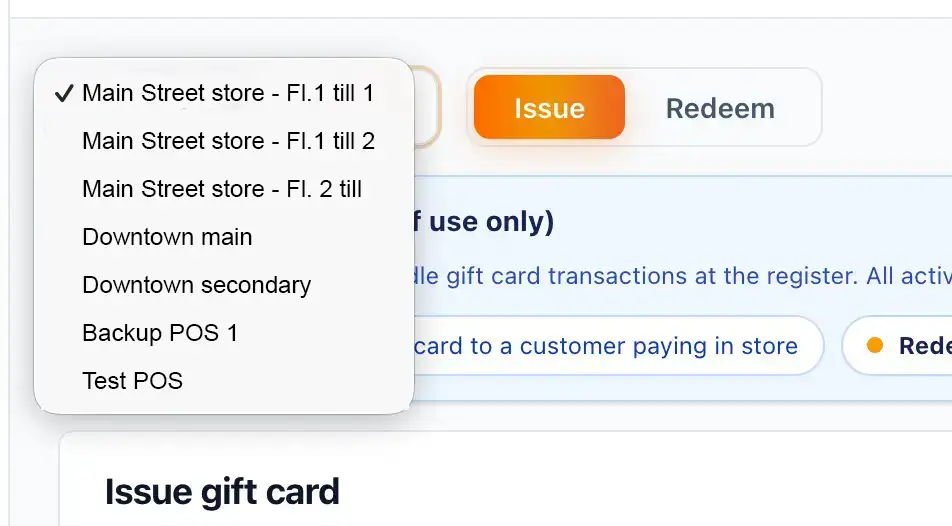
Selecting a location
At the top of the screen, a dropdown (labelled with the current location's name, for example Main St. store - till 5) lets you switch between your retail locations. Each physical store or terminal is set up with its own name in advance, so the list reflects whichever POS locations have been configured for your account. The selected location determines where this transaction is recorded.
Issuing a gift card
Switch to the Issue tab to sell a new card to a customer paying in store.
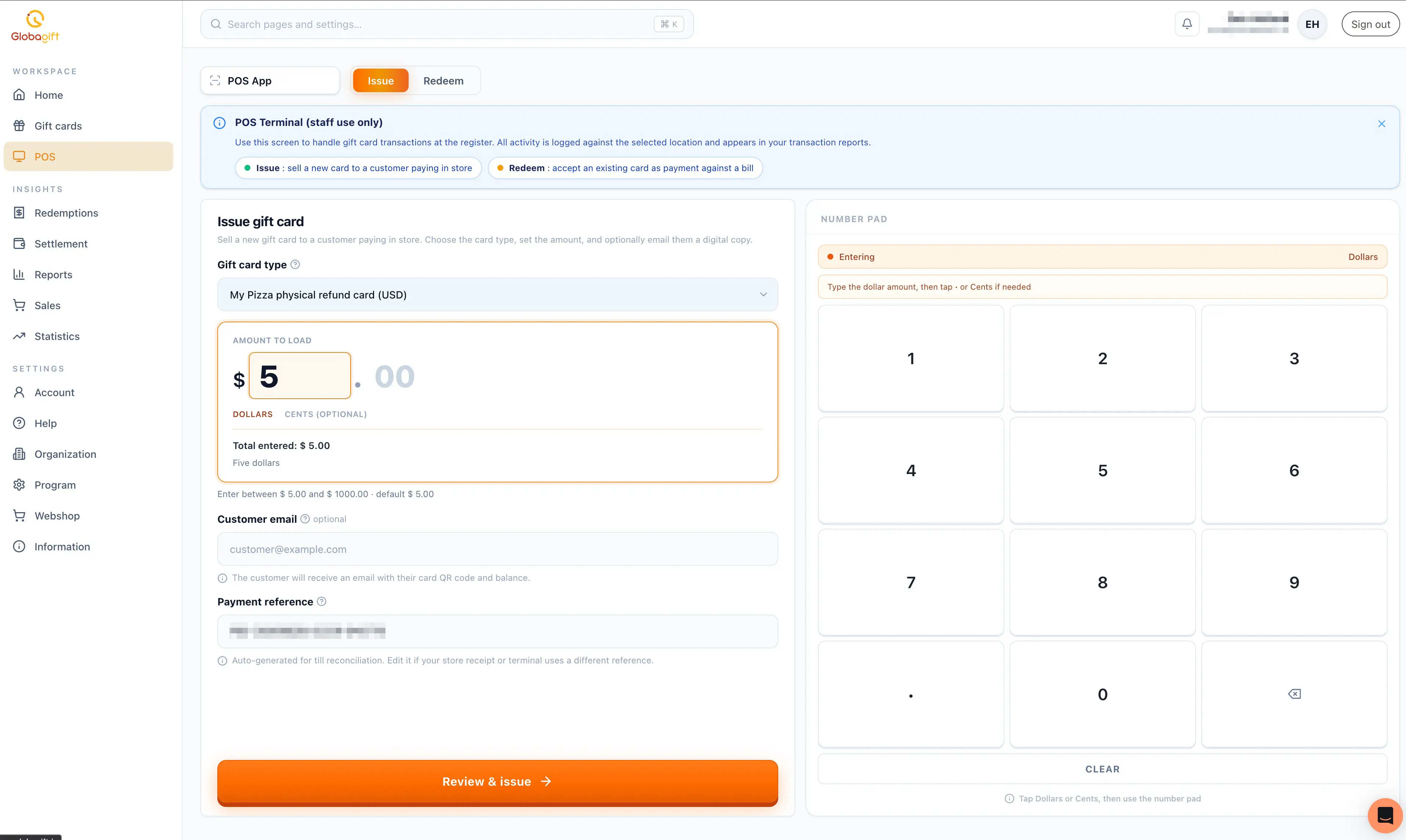
- Gift card type: choose which of your gift card products to issue.
- Amount to load: enter the dollar amount using the number pad. If the selected product has a fixed price, this is locked to that amount; if it's flexible, you can enter any amount within the product's configured minimum and maximum (shown below the amount field, for example "Enter between $5.00 and $1000.00").
- Customer email (optional): if provided, the customer receives an email with their card's QR code and balance.
- Payment reference: auto-generated for till reconciliation. Edit it if your store receipt or terminal uses a different reference.
Select Review & issue to complete the sale.
Redeeming a gift card
Switch to the Redeem tab to accept an existing card as payment against a bill.
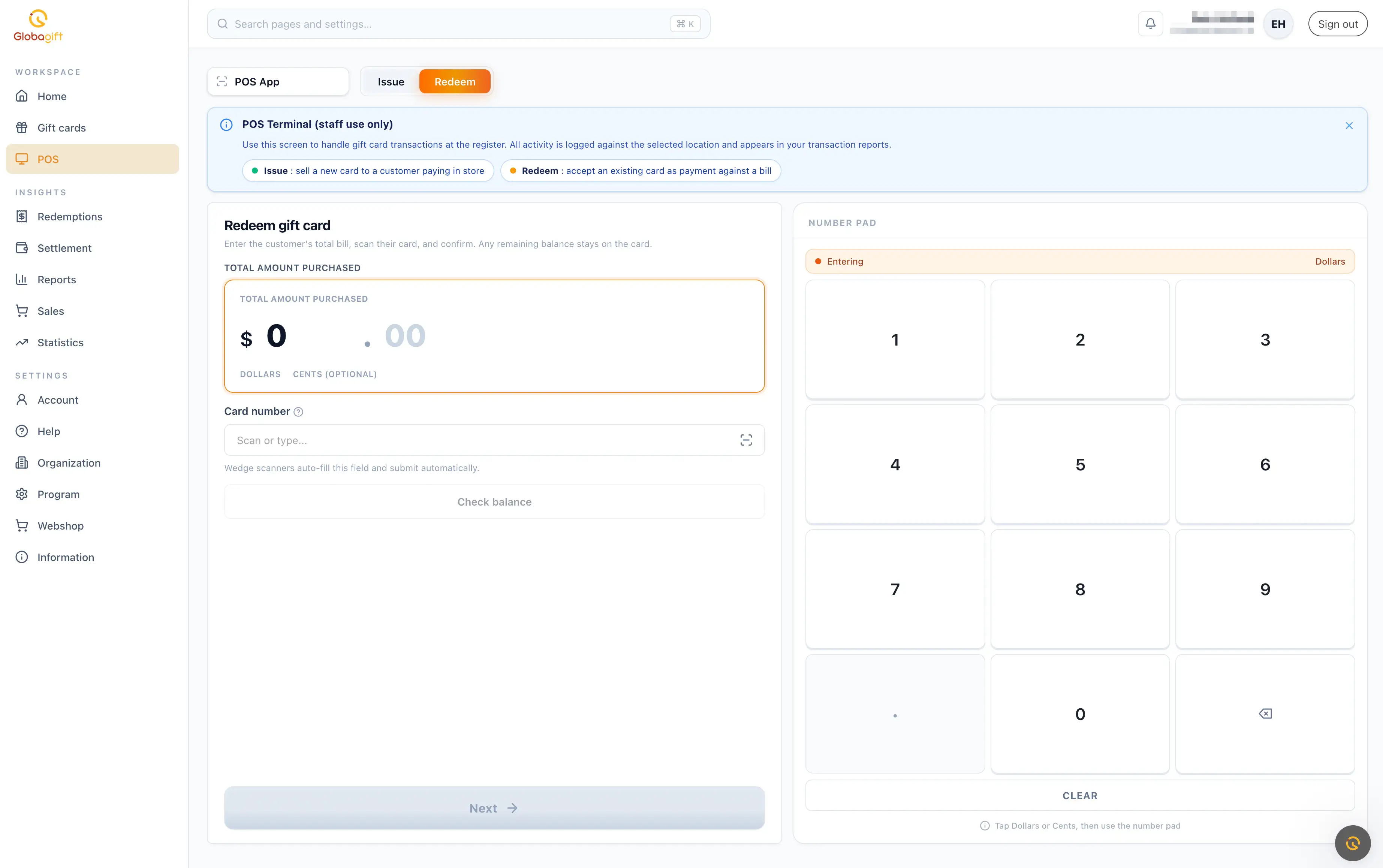
- Total amount purchased: enter the customer's total bill using the number pad.
- Card number: scan the customer's card, or type the number manually. A wedge (handheld) scanner auto-fills this field and submits automatically.
- Select Check balance to look up the card before redeeming, if needed.
Any remaining balance after the redemption stays on the card for future use, it is not a single-use voucher.
Staff use only
This screen is intended for staff at the till, not customers. Treat it the same as any other point-of-sale function in your till workflow.