
Brands and access
Switch between Globagift brand workspaces, understand active and pending brands, and find out how organisation and per-brand permissions affect access.
Organisations and brands
An organisation represents the company behind your businesses. It holds the business details used for verification and brings your team together. A brand represents a business your customers recognise, with its own workspace for gift card products, designs, activity, storefront, and settlement.
Example: one company, three different businesses
In this example, Northstar Group is one organisation with three different brands: Harbour Kitchen, a restaurant; North & Co., a clothing shop; and Willow Spa.
- A brandHarbour KitchenRestaurant
- A brandNorth & Co.Clothing shop
- A brandWillow SpaSpa
Company details and team membership belong to the organisation. Each brand has a separate workspace for its own gift cards, artwork, sales, redemptions and reporting. Manage each brand’s activity independently of the others.
If your company runs one business, the organisation and brand may share a name. They still have separate purposes: company and team settings at organisation level, and gift card activity in the brand workspace.
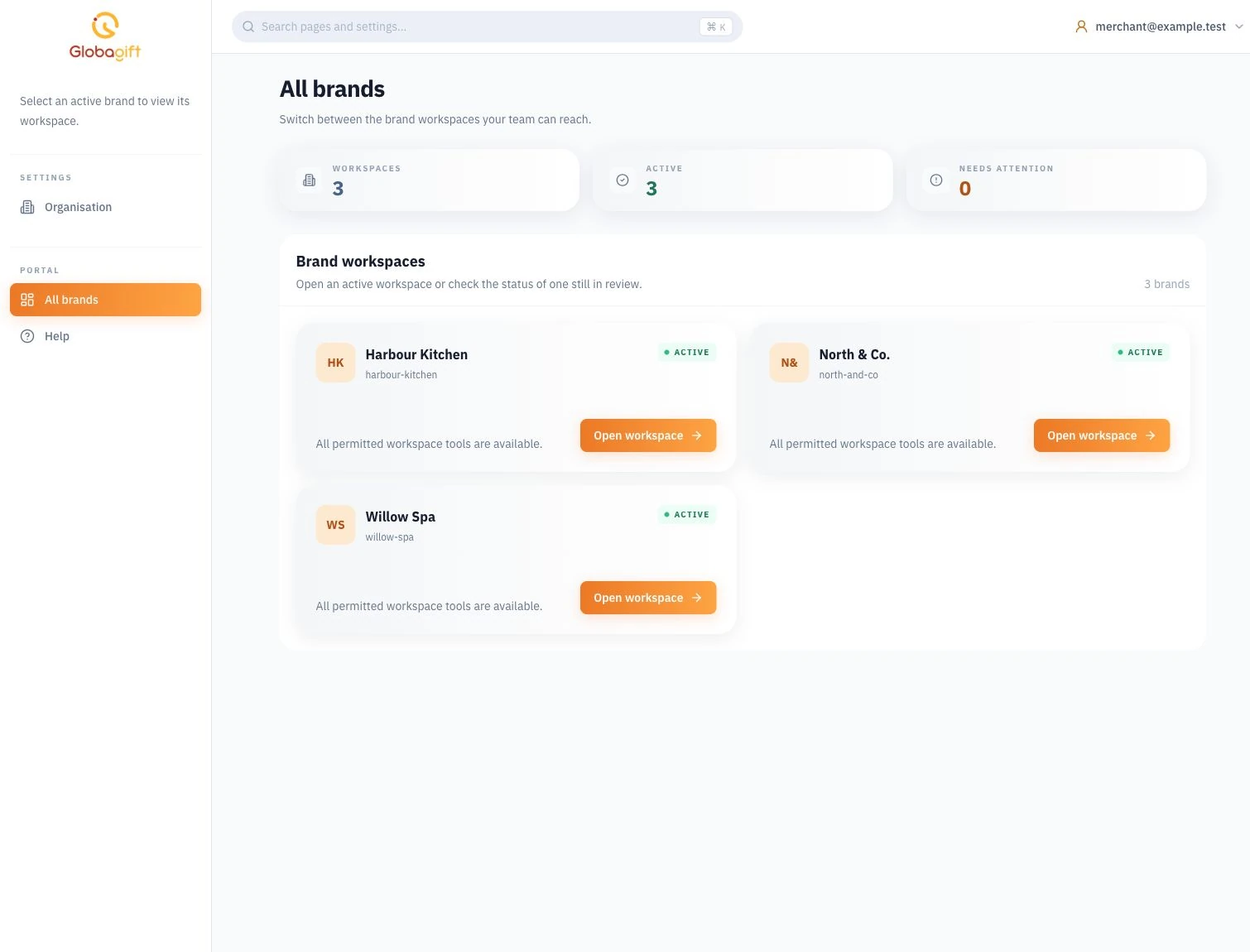
Open All brands to find the workspaces available to you. A brand must be active before its operational pages are available. A pending brand can still be waiting for activation after business verification is complete.
Switch brands
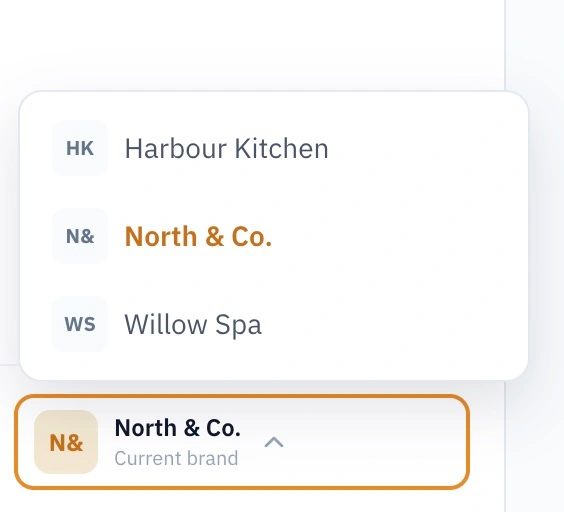
On desktop, the brand switcher is at the bottom left of the screen, in the navigation sidebar. It shows the current brand's name and Current brand.
- Select the current brand's name to open the menu.
- Select the brand you want to work with.
- Check the selected brand before issuing a card, sharing a storefront, or reviewing financial information.
You can also use All brands to open a workspace. On smaller screens, open the navigation menu from the top bar to find the brand switcher.
Under Account > Default brand, select your preferred workspace and save it. The default affects where you land; it does not grant access to another brand.
For example, if you mainly work at Harbour Kitchen, make it your default brand. When you need to review Willow Spa's activity, switch to Willow Spa first. Check the brand name before issuing a card or reading a report.
Team access
For team roles and brand permissions, see Team access.