
Gift card Designer
Upload your own artwork, or use our built-in gift card designer to help create custom images for your gift cards.
Create artwork in Gift cards > Designer, or choose a saved design when editing a gift card.
Choose artwork for a gift card
On a gift card, select Change artwork. Choose a design from My library, or create one with a template, image upload or AI background.
Start from a template
Choose Templates, then select Use template. Name the design so you can find it in My library later.
Upload your own image
Choose Upload image, name your design, then select a PNG or JPEG up to 10 MiB. Crop it to fill the card, or fit the full image and choose a background colour for the edges. Artwork is landscape, 3:2; the finished size is 1200 × 800 pixels.
Generate a background with AI
Choose an occasion, style and colours under Generate with AI, describe the background, then select Generate artwork. Add your logo or message in the editor.
Add your logo
In Logo, upload a PNG or JPEG up to 2 MiB, choose a size and position it on the card. Use Contrast backing if needed. Choose No logo if the background already includes it. You can also save the logo to your brand's Information page when that option is available.
Add a message
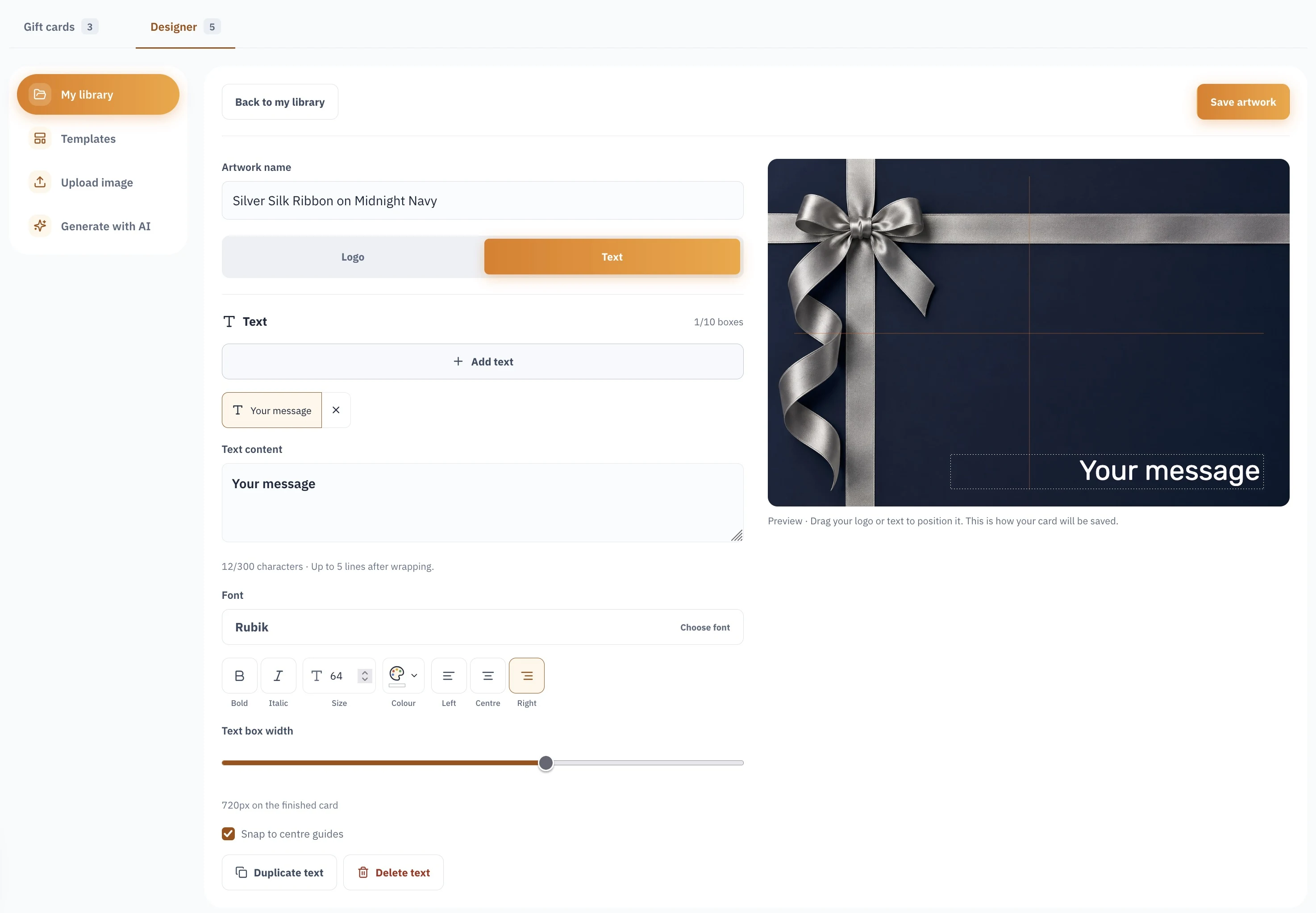
In Text, select Add text, enter your message, then set its font, colour and size. Drag it into place; use Text box width and Snap to centre guides to adjust it. Add more text boxes for separate messages.
Save your finished design
Select Save and apply artwork to apply the design to the gift card. To save it for later, select Save artwork. From My library, choose Use on this card to apply it, or Edit a copy to customise it first.
For help with prices, availability and other card settings, see Gift cards.
Gift cards
Manage branded gift card products and designs in Globagift. Set amount bands, currency, expiry and sales periods, and select ready artwork.
Point of sale
Issue gift cards, check customer balances and redeem cards at the till using Globagift Point of sale. Learn delivery options and confirmation steps.